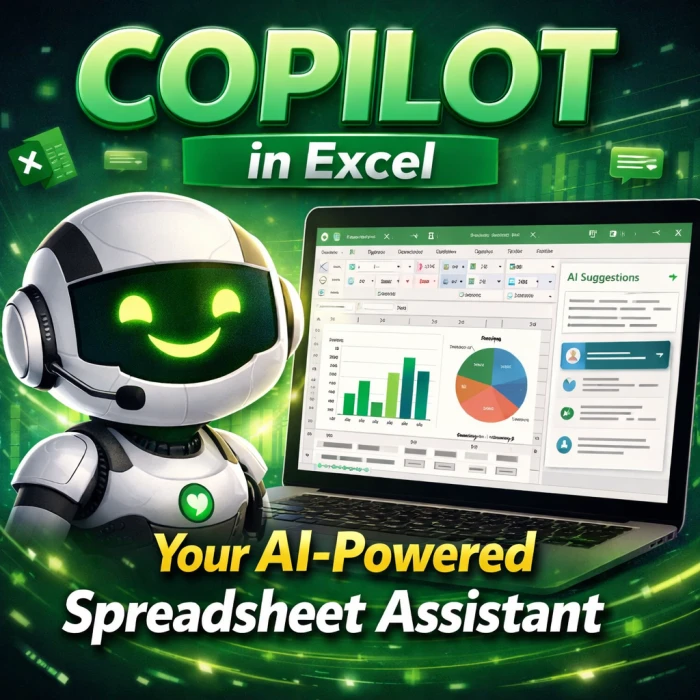
Microsoft Copilot is revolutionizing how we interact with data in Excel. While the exact implementation and features might evolve based on the Microsoft 365 rollout and updates, the core concept is to provide AI assistance directly within your spreadsheets. This guide explores the anticipated functionalities, potential use cases, and what you can expect from COPILOT in Excel.
What is COPILOT in Excel?
COPILOT, in the context of Excel, refers to Microsoft's AI assistant integrated directly into the application. It leverages advanced machine learning models to help you:
- Analyze Data Faster: COPILOT can identify trends, patterns, and anomalies in your data, saving you time and effort.
- Automate Tasks: Automate repetitive tasks like data cleaning, formatting, and calculations.
- Generate Insights: Get suggestions for charts, pivot tables, and other visualizations based on your data.
- Ask Questions in Natural Language: Interact with your data using plain English. Ask COPILOT to "show me the total sales by region" or "find the top 5 performing products."
Key Features and Functionality (Anticipated)
While features may vary and be subject to change, here are some of the key functionalities expected from COPILOT in Excel:
- Natural Language Querying: Ask questions about your data using natural language, and COPILOT will provide answers and insights. For example: "What is the average revenue per customer?"
- Automated Data Cleaning and Transformation: COPILOT can identify and fix errors in your data, such as missing values, inconsistent formatting, and duplicate entries.
- Intelligent Chart and PivotTable Suggestions: COPILOT suggests relevant charts and pivot tables based on your data, helping you visualize and analyze your data more effectively.
- Formula Generation: COPILOT can help you write complex formulas by understanding your intent and suggesting the appropriate functions.
- Predictive Analysis: COPILOT can use historical data to predict future trends and outcomes.
- Content Generation: Create reports, summaries, and presentations based on your data.
How to Use COPILOT in Excel (Conceptual)
Although the exact interface might differ upon release, the general workflow is expected to be similar to other AI assistants:
- Access COPILOT: Look for a COPILOT icon or button within the Excel interface, likely located on the ribbon or a sidebar.
- Describe Your Task: In the COPILOT window, describe what you want to achieve using natural language. For instance, "Create a chart showing sales by quarter."
- Review Suggestions: COPILOT will provide suggestions and options based on your request. Review these suggestions and refine your query if needed.
- Apply the Changes: Once you're satisfied with the suggestions, apply the changes to your spreadsheet.
Examples of COPILOT in Action
Example 1: Analyzing Sales Data
Your Goal: You have a spreadsheet with sales data and want to find out which product category is performing the best.
Your Query to COPILOT: "Show me the total sales for each product category."
COPILOT's Response: COPILOT will automatically create a pivot table or a chart that summarizes the sales by product category, allowing you to quickly identify the top-performing categories.
Example 2: Cleaning Up Data
Your Goal: You have a spreadsheet with customer data, but some of the email addresses are missing or invalid.
Your Query to COPILOT: "Find and fix any invalid email addresses in the 'Email' column."
COPILOT's Response: COPILOT will identify invalid email addresses and offer suggestions for correcting them or removing them from the dataset.
Example 3: Generating a Formula
Your Goal: You want to calculate the total revenue for each product based on the quantity sold and the price per unit.
Your Query to COPILOT: "Create a formula to calculate the total revenue by multiplying the 'Quantity' column by the 'Price' column."
COPILOT's Response: COPILOT will generate the formula (e.g., =A2*B2) and suggest applying it to the entire column.
Tips for Effective Use of COPILOT
- Be Specific: The more specific you are in your requests, the better COPILOT will be able to understand your needs.
- Use Natural Language: Don't be afraid to use plain English when interacting with COPILOT.
- Review Suggestions Carefully: Always double-check COPILOT's suggestions to ensure they are accurate and meet your requirements.
- Start Simple: Begin with simple tasks and gradually move on to more complex ones as you become more comfortable using COPILOT.
- Provide Context: If COPILOT is struggling to understand your request, provide more context about your data and what you're trying to achieve.
Limitations and Considerations
Important Note: COPILOT's performance depends on the quality and structure of your data. Ensure your data is clean and well-organized for optimal results.
- Data Quality: COPILOT is only as good as the data it's working with. Inaccurate or incomplete data can lead to inaccurate results.
- Complexity: COPILOT may struggle with highly complex or nuanced tasks.
- Privacy and Security: Be aware of the privacy and security implications of using AI tools with sensitive data. Follow Microsoft's guidelines and best practices for data protection.
- Availability: Copilot features are rolling out in phases and might not be immediately available to all users.
Conclusion
COPILOT has the potential to transform how we work with Excel, making data analysis and automation more accessible and efficient. By understanding its capabilities and limitations, you can leverage this powerful AI assistant to unlock new insights and streamline your spreadsheet tasks. Stay tuned for further updates and developments as Microsoft continues to enhance COPILOT's functionality.